How to Put MP3 Files on Your iPhone Without iTunes
iTunes is gone, and the Music app won't take a file from the Files app. Here are three ways to get your own MP3s onto an iPhone — AirDrop, iCloud Drive, or a cable — and play them offline.
Created by Bee
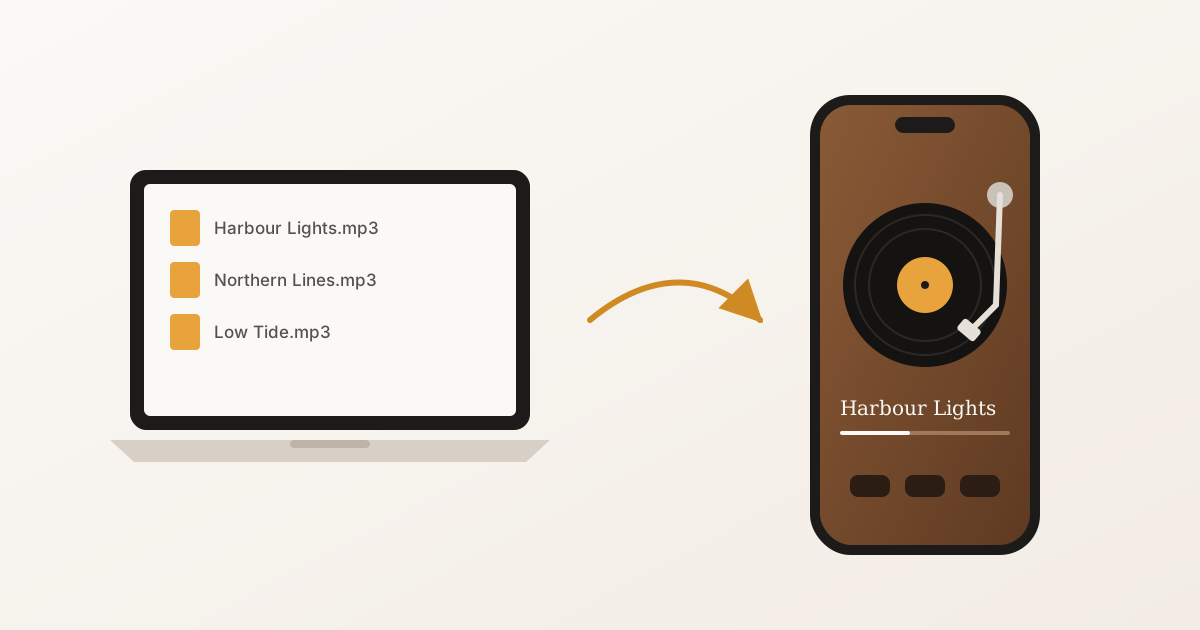
Short answer: copy the files to your iPhone, then open them in a music player that can import from Files. Apple retired iTunes years ago, and the Music app on iPhone still won’t take an MP3 that you’ve saved to the Files app. So the job has two halves: getting the file onto the phone, and getting it into an app that plays it.
This guide covers three ways to do the first half — AirDrop, iCloud Drive and a USB cable — using BeeTunes, our player for your own music, for the second. The steps for getting files onto the phone work the same with any app that imports audio.
Which method should you use?
| Method | You need | Best for |
|---|---|---|
| AirDrop | A Mac nearby | A few songs at a time |
| iCloud Drive | Internet, iCloud storage | Songs from a Windows PC, or from anywhere |
| USB cable | A Mac (Finder) or a Windows PC (Apple Devices app) | A big library in one go, no upload |
All three end the same way: the songs are stored on your iPhone and play offline.
Method 1: AirDrop from a Mac
AirDrop is the quickest way to move a handful of songs.
- On your Mac, select the MP3 files in Finder.
- Right-click, choose Share → AirDrop, and pick your iPhone.
- On the iPhone, accept the transfer. The songs are saved to the Files app, in its Downloads folder.
- Open BeeTunes, tap the Library button (the list icon in the top corner), then tap + (Import Music).
- Go to Downloads (under On My iPhone, or under iCloud Drive if you’ve moved your downloads there), select the songs, and tap Open.
BeeTunes copies each song into its library. Once they’re in, you can delete the copies in Downloads to save space.
Method 2: iCloud Drive (works from Windows too)
iCloud Drive is the way to go from a Windows PC, or when the songs are on a computer that isn’t with you.
- Put the MP3 files in iCloud Drive:
- Mac: drag them into iCloud Drive in the Finder sidebar.
- Windows: drag them into the iCloud Drive folder that iCloud for Windows adds to File Explorer.
- Any browser: sign in at icloud.com, open Drive, and upload them.
- On your iPhone, open BeeTunes and tap the Library button (the list icon in the top corner).
- Tap + (Import Music), go to iCloud Drive, and select the songs. You can select many at once.
The same picker shows any other storage app you have installed, such as Google Drive or Dropbox, so songs kept there import the same way.
Method 3: A USB cable, with no upload
For a large library, a cable is the fastest route and keeps your music off the cloud entirely. iTunes is no longer needed: on a Mac, Finder does the job; on Windows, Apple’s free Apple Devices app does.
- Connect your iPhone to the computer and tap Trust on the phone if asked.
- Open the device:
- Mac: click your iPhone in the Finder sidebar.
- Windows: open the Apple Devices app and select your iPhone.
- Go to the Files section. It lists the apps on your iPhone that accept files.
- Drag your MP3 files (or a whole folder of them) onto BeeTunes.
- Open BeeTunes on your iPhone. It imports everything that arrived and clears the copies it was handed. If BeeTunes was already open in the background, close it from the app switcher and open it again.
After the import
Every song you import is stored inside BeeTunes on your iPhone, so it plays with no connection at all — on a plane, on the subway, on a trail. BeeTunes reads each file’s title, artist, album and cover art, and your library looks like a shelf of records in their sleeves. Pick one and choose what plays it: a turntable, a CD deck, a cassette deck, a radio or a digital player.
A few things worth knowing:
- Tag your files first. Titles and artwork come from the file’s own tags. A file without a title tag shows up under its filename.
- Formats: MP3, AAC/M4A, WAV and AIFF all work. OGG, Opus and WMA don’t; convert them to MP3 or M4A first.
- Originals stay put. Importing copies the file, so you can delete the originals from iCloud Drive afterwards to free up iCloud storage.
- Your Apple Watch, too. BeeTunes can send imported songs to your Apple Watch to play there, without your iPhone nearby.
What about the Music app?
You can still get your own MP3s into Apple’s Music app, but only from a computer: sync them with Finder or the Apple Devices app, or upload them to your iCloud Music Library from the Music app on a Mac or PC (which needs an Apple Music or iTunes Match subscription). If your files are already on your phone, or you’d rather not sync, a player that imports from Files is the simpler path.
Frequently asked questions
- Can I add MP3 files to the Apple Music app without a computer?
- Not directly. The Music app on iPhone only shows your own files if they were synced from a computer (Finder on a Mac, or the Apple Devices app on Windows) or uploaded to your iCloud Music Library from the Music app on a computer. To play an MP3 that is already on your phone — in Files, iCloud Drive or a download — you need a player app that can import from Files.
- Do imported songs need an internet connection to play?
- No. Once a song is imported into a player like BeeTunes, it is stored on the iPhone itself and plays in airplane mode, underground or anywhere else without a signal. Only the import from iCloud Drive needs a connection, to download the file the first time.
- Which audio formats can I put on my iPhone?
- MP3, AAC/M4A, WAV and AIFF all work in BeeTunes. Formats iOS cannot decode, such as OGG, Opus and WMA, are rejected with a message; convert them to MP3 or M4A on your computer first.
- Will the song titles and album art come across?
- Yes, if they are in the file. BeeTunes reads the title, artist, album and artwork embedded in each file's tags. A file with no title tag is named after its filename, so it is worth tagging your files before you import them.
- Does importing delete the file from iCloud Drive or my computer?
- No. Importing makes a copy inside the app, and the original stays where it was. Once the songs are imported you can delete the originals from iCloud Drive to free up iCloud storage — the copies on your iPhone keep playing.