How to Open a PDF on Your Apple Watch
watchOS has no built-in PDF support, but there are two very different ways to get one onto your wrist — viewing the page, or reading the text. Here's which you want, which apps do each, and why PDFs break in ways EPUBs don't.
Created by Bee
Short answer: not with anything Apple ships. The Apple Watch has no Files app and no PDF viewer. What it does have is third-party apps — and they split into two camps that solve genuinely different problems. Picking the wrong camp is the reason most people conclude that PDFs on a watch “don’t work”.
First, decide which thing you actually want
| You want to… | You need | Example use |
|---|---|---|
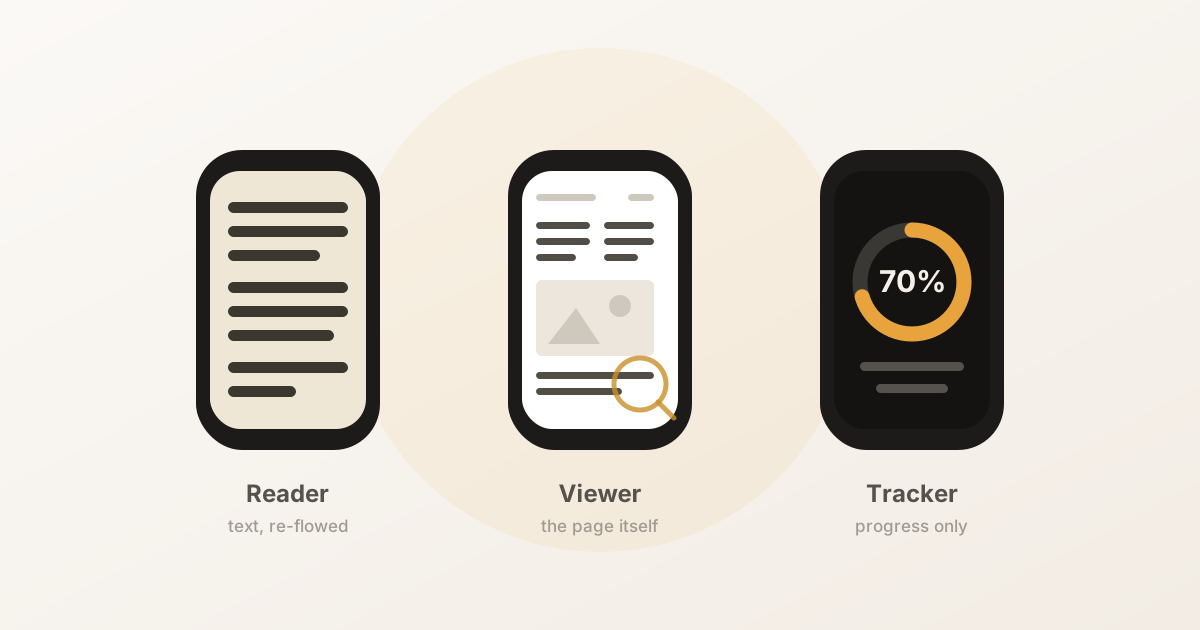
| See the page — layout, tables, diagrams, a signature block | A PDF viewer that renders pages and lets you zoom and pan | A boarding pass, a wiring diagram, sheet music, a contract clause |
| Read the words — start to finish, for minutes at a time | A reader that extracts the text and re-flows it | A book, a paper, a long report, a manuscript |
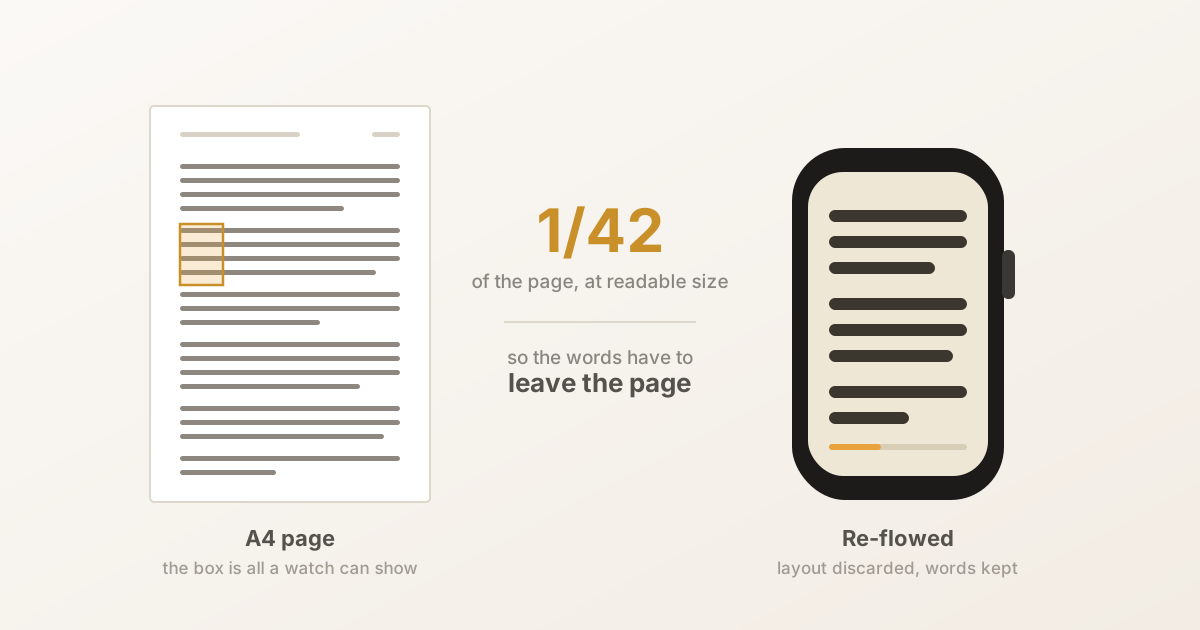
A viewer keeps the page intact and asks you to navigate around it with the Digital Crown. On a 45mm screen you are looking at roughly a postage stamp’s worth of an A4 page at a time, so it works well for checking something and badly for reading something.
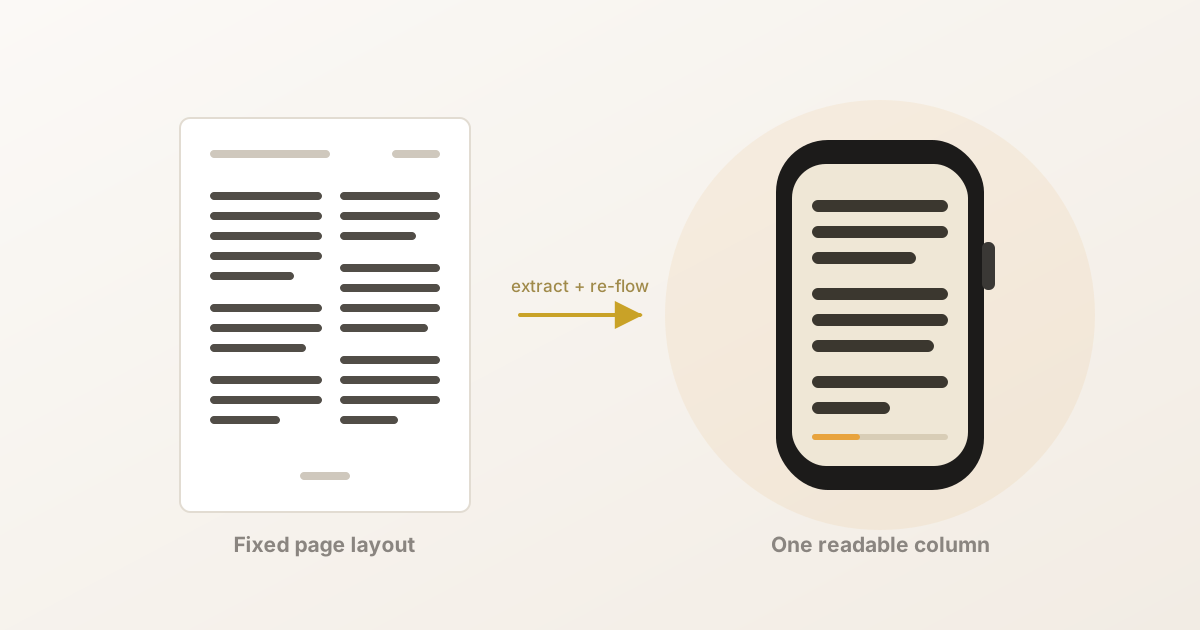
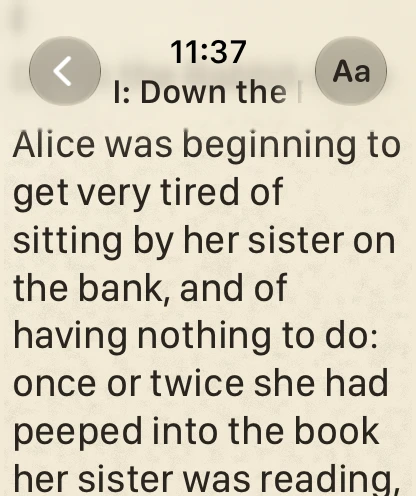
A reader throws the page layout away and keeps only the sentences, re-wrapping them to the width of the watch. You lose the tables and the figures; you gain text you can actually read for ten minutes without pinching and dragging.
Disclosure: we make BeeReader, which is a reader, not a viewer. If what you need is the page, one of the viewers below will serve you better — they’re listed with their own App Store descriptions.
The apps, by camp
Details are from each app’s App Store listing as of August 2026.
| App | Camp | Notes |
|---|---|---|
| Wrist PDF Viewer | Viewer | Crown zoom, double-tap zoom, text search; watchOS 9+ |
| WristDocs / PDF Watch Viewer | Viewer | PDF, Word, Excel and text; page jump and zoom |
| iWatch PDF | Viewer | Multi-page browsing offline, Crown zoom, text search |
| WristNotes | Viewer | Adds AI summaries of long documents to the watch face |
| BeeReader | Reader | Extracts and re-flows text; also TXT and EPUB; auto-scroll |
| Wrist Reads | Reader | EPUB, PDF and TXT with a phone-side library |
Why PDFs are harder than EPUBs
This is worth understanding, because it explains every weird thing you will see.
An EPUB is essentially a zipped website: HTML that says “this is a paragraph, this is a heading”. Re-flowing it to a small screen is what it was designed for.
A PDF describes a printed page. Internally it says “put this glyph at these coordinates” — it does not record which sentence the glyph belongs to, where paragraphs start, or which text is body copy versus furniture. Everything a reader app needs has to be inferred back out of the geometry. Four things routinely go wrong:
- Running headers and footers. The book title and page number sit at the top and bottom of every page. Extract text naively and you get “…she had never seen PRIDE AND PREJUDICE 47 him look so well” spliced through the prose.
- Hard line breaks. Every visual line ends in a line break, so sentences arrive pre-chopped at the width of the original page — which is the one width you don’t want on a watch.
- Hyphenation. Words broken across a line end come through as “neigh-” and “bourhood”.
- Figure captions. The watch shows no images, so “Figure 3. Annual rainfall, 1890–1910” lands between two unrelated sentences with nothing to explain it.
There is also a subtler one: page breaks almost always fall mid-sentence, so an app that re-flows each page in isolation freezes that break into a permanent paragraph boundary. Cleanup has to happen after the pages of a chapter are joined, not before. If you have ever wondered why one app’s PDF import reads fine and another’s reads like a ransom note, that is usually the difference.
Getting a PDF onto the watch
The shape is the same across apps, because watchOS allows nothing else — there is no general “send this file to my watch”.
- Get the PDF onto your iPhone — Files, iCloud Drive, a Mail attachment, or straight from another app.
- Open it in the watch companion app, either from inside the app or via the Share sheet.
- Let it parse. A reader extracts and cleans the text here; a viewer prepares the pages. A long PDF takes a few seconds.
- Send it across. It transfers over Bluetooth via Apple’s watch-connectivity framework. Keep the watch app open the first time and it lands in seconds; in the background watchOS wakes the watch to receive, which works but is less predictable.
- Open it on the watch. From here it is stored locally and needs no phone.
When it doesn’t work
Four failure modes cover almost everything:
“It says there’s no text.” You have a scanned PDF — a photograph of a page, with no text layer at all. Nothing can extract words that were never stored as words. Run it through OCR first (Preview on macOS will do it, as will Acrobat and most scanner apps) and re-import the searchable version.
“It never finished importing.” The file is probably a cloud placeholder that hasn’t downloaded. Some providers hand over a stub rather than the contents. Open the file once in its own app to force a real download, or share it directly from there.
“The text is garbled.” See the section above. If your app doesn’t clean up on import, convert to EPUB on a computer first — Calibre is the standard free tool and does a decent job of un-picking two-column layouts.
“The tables are gone.” They are, and they aren’t coming back. A table is a layout, and a reader keeps sentences. If you need the table, you need a viewer, and you will be zooming.
The no-app workaround
For completeness, because it still circulates on forums: convert each PDF page to a JPEG, put the images in a Photos album that syncs to your watch, and favourite them.
It genuinely works and costs nothing. It is also one-way, has no text search, no reflow and no reading position, and becomes miserable past about five pages. Worth knowing for a one-off — a single page you need at a turnstile — and not worth building a habit on.
The short version
- watchOS has no native PDF support; you need a third-party app.
- Decide first whether you want to see the page (viewer) or read the words (reader) — they are different apps solving different problems.
- PDFs break in ways EPUBs don’t because a PDF stores positions, not sentences. Good apps clean up headers, hyphens and line breaks on import.
- Scanned PDFs need OCR first. There is no way around that.
- Once transferred, the file is on the watch and works with no phone and no network.
If reading is what you’re after, BeeReader is free to start — it takes PDF, EPUB and TXT, cleans up the text on import, and works entirely offline with no account and no data collection.
Frequently asked questions
- Can you open a PDF on an Apple Watch?
- Not with anything Apple ships — watchOS has no Files app and no PDF viewer. Third-party apps handle it in one of two ways: some render the actual PDF pages so you can zoom and pan around them, and some extract the text and re-flow it into a readable column. Which you want depends on whether you need to see the page or read the words.
- How do I send a PDF from my iPhone to my Apple Watch?
- You can't do it from the Files app — there is no general file transfer to the watch. You open the PDF inside a watch-companion app on your iPhone, and that app sends it across using Apple's watch-connectivity framework. Once it has arrived the PDF is stored on the watch and works offline.
- Why does my PDF look like scrambled text on the watch?
- Because a PDF stores where each fragment of text sits on a page, not which sentence it belongs to. Extracting text naively splices running headers, page numbers and figure captions into the prose, and freezes line breaks mid- sentence. Apps that clean up on import strip the repeated furniture and re-flow the sentences; if yours doesn't, converting the PDF to EPUB first gives a far better result.
- Can I read a scanned PDF on my Apple Watch?
- Not directly. A scanned document is a picture of a page with no text layer, so there is nothing for a reader app to extract. Run it through OCR first — Apple's own Preview on macOS, Adobe Acrobat, or any OCR tool — and the resulting searchable PDF will import normally.
- Do PDFs on the Apple Watch work without the iPhone?
- Yes, once the file has actually been transferred and stored on the watch. From then on it needs no phone, no Wi-Fi and no cellular. Apps that stream or mirror from the phone do not have this property, so it is worth checking which kind you have installed.
- Is there a way to view a PDF on Apple Watch without installing an app?
- There is one workaround — convert each page to a JPEG, add the images to a Photos album that syncs to the watch, and mark them as favourites. It works, but it is one-way, has no text search or zoom beyond the Photos app's own, and gets tedious past a few pages.