How to Put an EPUB on Your Apple Watch (and Read It Offline)
You can read an EPUB on an Apple Watch in three steps: import the file on your iPhone, send it to the watch, and read with the Digital Crown. Here's the full walkthrough, what to do when the book doesn't arrive, and why a DRM-protected EPUB won't work.
Created by Bee
Updated 3 October 2026
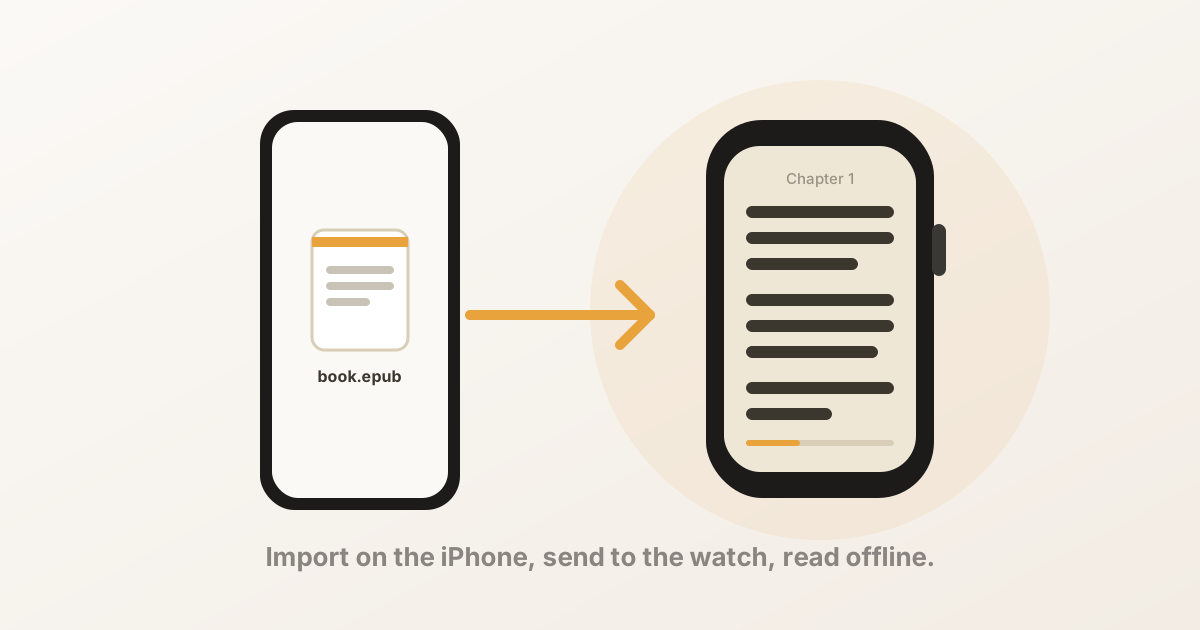
Short answer: import the EPUB on your iPhone with a watch reader app, which sends it to the watch, and read it on the wrist with the Digital Crown. The watch stores the book itself, so once it has arrived you can read without the phone, without a connection and without an account.
This guide uses BeeReader, which we make; other watch reader apps follow the same shape because watchOS forces it. The steps below cover EPUB and TXT. PDFs work too but have their own wrinkles — see How to open a PDF on your Apple Watch.
Before you start: check the EPUB isn’t locked
This is the step that saves the most frustration. An EPUB is either a plain file you own, or a DRM-protected file that only its store can open.
- Will work: EPUBs from publishers who sell without DRM, downloads from Standard Ebooks or Project Gutenberg, files you made yourself, and anything with a “Download EPUB” button in the store you bought it from.
- Won’t work: anything bought from Apple Books, most Kobo and Google Play purchases, and all Kindle books (which aren’t EPUBs anyway). These are encrypted, and no watch app can read them — BeeReader included. There’s a longer explanation if you want it.
If you’re not sure which you have, just try it: a locked file fails at the import step rather than wasting your time later.
Step 1: Get the EPUB onto your iPhone
Any of these works:
- Save it into the Files app — “On My iPhone” or iCloud Drive — from Safari or a download link.
- Leave it as a Mail attachment; you can share it straight from there.
- AirDrop it from a Mac.
- Keep it in a cloud drive (Dropbox, Google Drive) that appears inside Files. A few cloud apps don’t expose their files properly; if a drive shows up empty or keeps loading, save the book into Files first.
Step 2: Open it in BeeReader
Two routes, and they end in the same place.
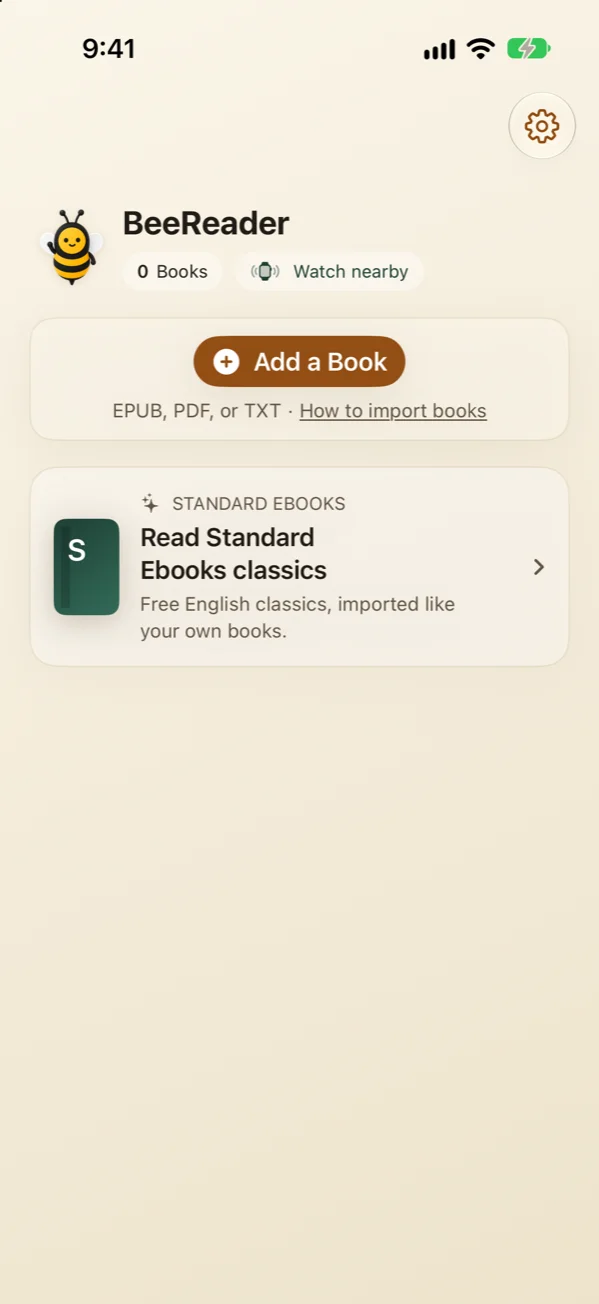
From inside the app: open BeeReader on the iPhone, tap Add a Book, and pick the EPUB from the Files picker.
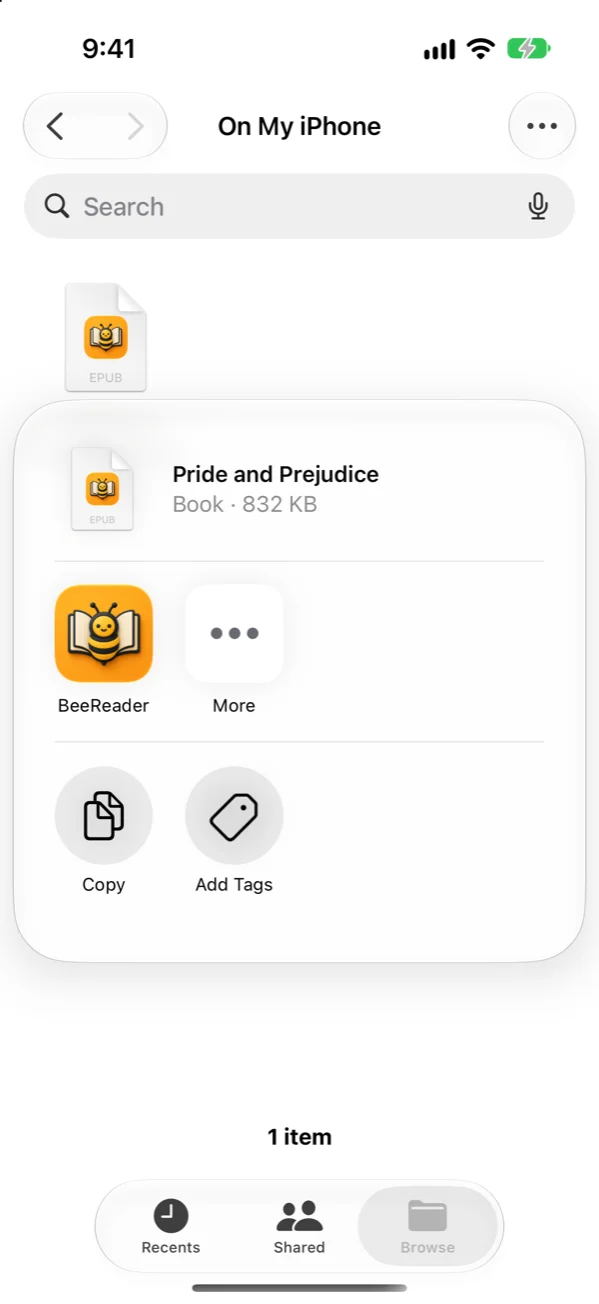
From the Share sheet: wherever the file already is — Files, Mail, Safari’s downloads — tap Share and choose BeeReader. This is the quicker route for a file you’ve just downloaded.
BeeReader then reads the EPUB: it pulls the text out of the book’s HTML, keeps the chapter structure from the EPUB’s own table of contents, and marks where each picture sits so you can open it on the watch. A clean EPUB takes a second or two.
Step 3: Send it to the watch
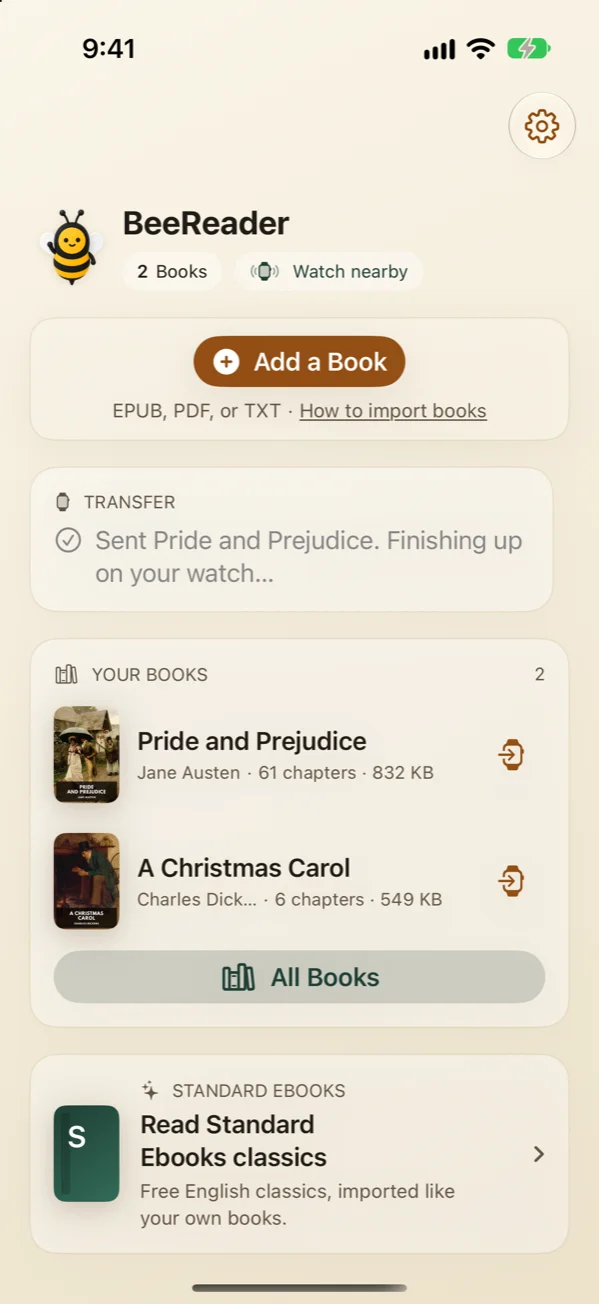
There’s nothing to tap: as soon as BeeReader has read the book, it sends it to the watch. (The Send to Apple Watch button on a book’s page is for sending it again later.) The text crosses over Bluetooth using Apple’s watch-connectivity framework; it’s compressed on the way, so a full novel is a small transfer — usually a few seconds, occasionally a minute for a long book.
Two practical notes:
- The first time, keep the watch app open while it sends. Transfers land fastest when the watch app is in the foreground. Background sending works too — watchOS wakes the watch to receive — but it’s less predictable, and you can leave the phone screen; the result shows on BeeReader’s home screen when it’s done.
- Your watch needs free space. A book is small, but a watch that’s full of music and podcasts can refuse the transfer. If it stalls, free up some storage on the watch and tap Send Again.
Step 4: Read it on the wrist
Open BeeReader on the watch and the book is in the list. Tap it and:
- Turn the Digital Crown to scroll. About 25–40 words fit on screen at a comfortable size — roughly one paragraph, which is a natural unit to read and think about before turning the crown again.
- Your place is saved automatically, every time. The “continue reading” complication on the watch face drops you straight back into the book.
- Chapters are under touch and hold → Contents (or the More actions button at the end of each chapter), so you can jump around a story collection or skip a foreword. A plain tap turns the page.
- Auto-scroll advances the text at a steady, adjustable pace so you never touch the watch. Set it slightly slower than you think you need.
- Read aloud turns the book into audio through your Bluetooth headphones (the watch won’t use its own speaker), with the page following along. Touch and hold the play button to change the speed, from 0.25× to 2×.
- Themes: black, paper, sepia, and Night for reading in a dark room. On an OLED watch the black theme is measurably easier on the battery.
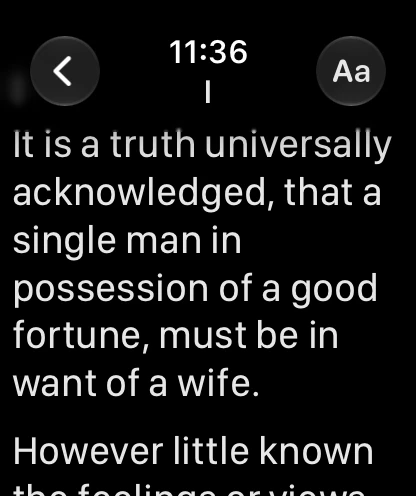
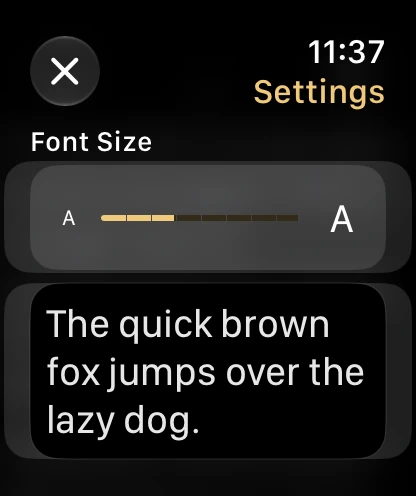
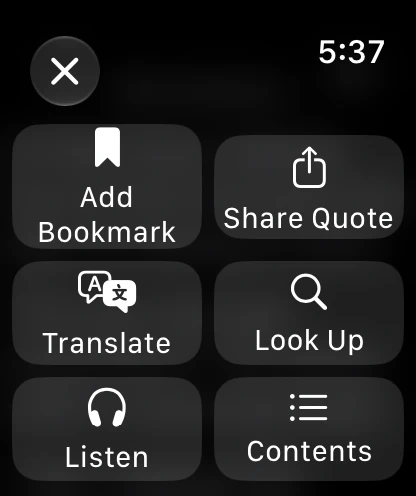
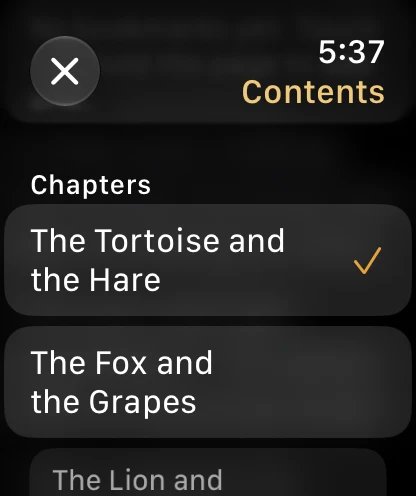
One watch setting makes a real difference: in the Watch app on your iPhone, Display & Brightness → Wake Duration → Wake for 70 seconds. The default 15 seconds turns the screen off mid-paragraph.
TXT files: the same, only simpler
Everything above applies to a .txt file, and there’s less that can go wrong,
because plain text has no structure to parse and nothing to lock. It’s the
best format for a saved article, notes, a manuscript, or a serialised novel.
BeeReader detects chapters from headings where the file has them.
When the book doesn’t arrive
In rough order of likelihood:
- The EPUB is DRM-protected. It fails at import with a message that the file couldn’t be read. There’s no fix other than a DRM-free copy.
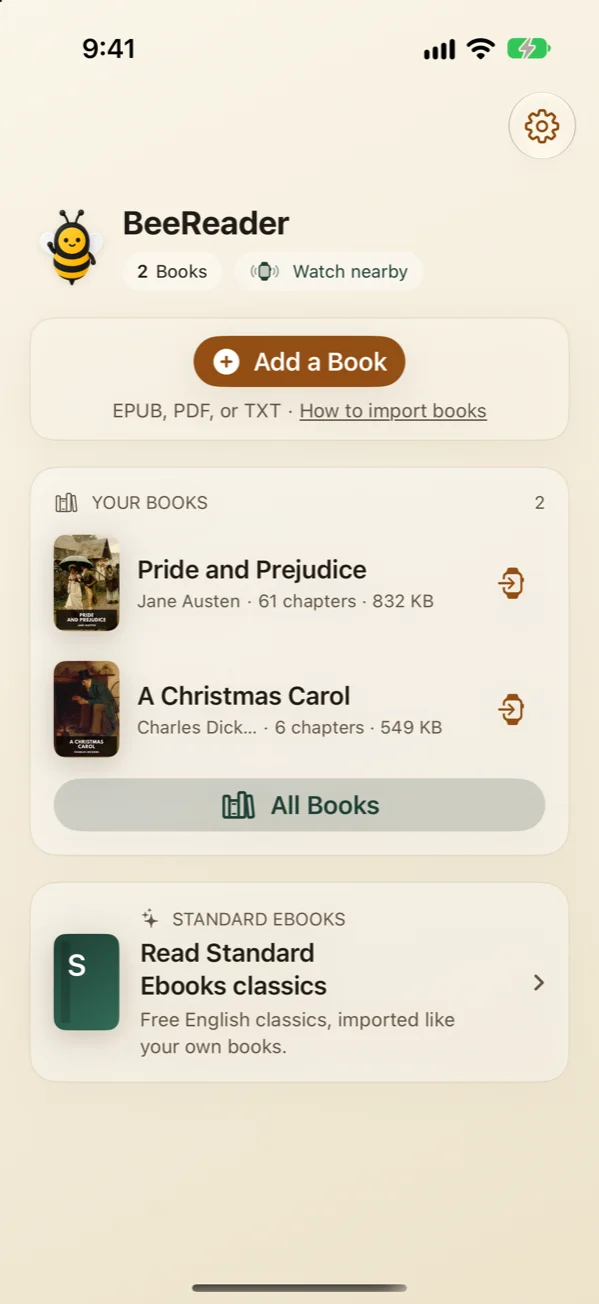
- The watch is out of storage. Free some space on the watch, then tap Send Again where the phone’s home screen lists the books that didn’t make it.
- The watch was asleep or out of range. Bring the two together, open the watch app, and resend. BeeReader keeps the book on the phone’s bookshelf, so resending never re-imports it — and never counts against the free books.
- Bluetooth is off on the phone, or the watch is in Airplane Mode with Bluetooth disabled. Turn it back on and resend.
Once a book has landed on the watch it stays there, and you can resend any book — or all of them, after setting up a new watch — from the phone’s shelf.
The short version
- Import on the iPhone, send to the watch, read with the Crown. That’s the whole process, and it takes about a minute.
- Use the Add a Book button or the Share sheet; both work.
- DRM-protected EPUBs won’t import. Store purchases are locked; DRM-free downloads and public-domain classics work fine.
- Once sent, the book lives on the watch and reads offline.
- Set Wake Duration to 70 seconds, try auto-scroll, and pick the black theme to save battery.
BeeReader is on the App Store. The first three books are free; unlimited imports are a one-time BeeReader Pro purchase, with no subscription. It has no account, works offline, and collects no data.
Frequently asked questions
- Can you read an EPUB on an Apple Watch?
- Yes. watchOS has no built-in EPUB reader, so you use a third-party app: it opens the EPUB on your iPhone, extracts the text and chapters, and sends them to the watch over Bluetooth. Once transferred, the book is stored on the watch and reads offline with the Digital Crown — no phone needed.
- How do I send an EPUB from my iPhone to my Apple Watch?
- Not through the Files app — there is no general file transfer to the watch. Open the EPUB in a watch reader app on your iPhone (BeeReader's "Add a Book" button, or the Share sheet from Files, Mail or Safari), and it sends the book to the watch by itself. A novel takes a few seconds to a minute to arrive.
- Why won't my EPUB import?
- Almost always because it is DRM-protected. EPUBs bought from Apple Books, Kobo (most titles) and similar stores are encrypted and can't be opened by any other app. An EPUB you downloaded from a DRM-free publisher, Standard Ebooks or Project Gutenberg will import normally.
- Does the book keep its chapters on the watch?
- Yes. BeeReader reads the EPUB's own table of contents, so you get a chapter list on the watch and can jump between chapters. Your reading position is saved automatically and restored when you come back.
- Can I put a TXT file on my Apple Watch the same way?
- Yes — the steps are identical, and plain text is the most reliable format of all because there is nothing to parse. Chapters are detected from headings where the file has them. PDFs work too, but need more cleanup; there is a separate guide for those.
- Do I need my iPhone with me to read the book afterwards?
- No. The book lives on the watch after the transfer. It reads in Airplane Mode, on a run with the phone at home, or anywhere else — no connection, no account.